
Google Sheets is a free spreadsheet application based in the cloud. Kind of like Excel, but in a web browser. Google Sheets and Excel are very similar, but also very different. Here’s a few tips on how you can make the most out of Google Sheets;
Collaboration
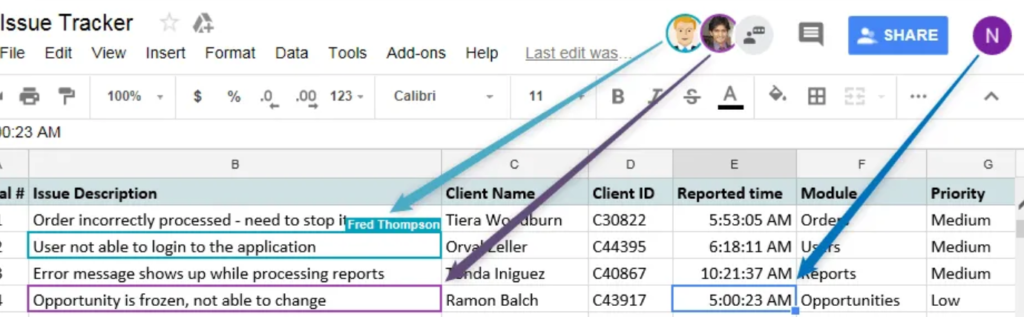
Multiple users can work on a Google Sheet at any one time, each user can view the actions of the other user and even send each other messages directly within Google Sheets. If you ever intend for other to see or edit a spreadsheet with someone else, the collaboration feature is a game changer.
Automations
You can create automations within Google Sheets. For example, if something happens in a cell, have something happen in another cell. Automations can be very complex, If this, and this, and that all happen, then do something. The automations can even occur external to Sheets, for example sending an SMS or email to a user if certain criteria is achieved.
Here are some Google Sheets automations we have created for our customers;
- When a sheet reaches xx amount of rows, email the sheet owner
- If certain criteria is selected in cell, open a new field asking for written feedback as to why those values have been selected
- Show/hide columns based on previous selections, ensuring only relevant columns are shown when needed
Add your own menu links or buttons
You can create your own menus in Google Sheets. These menu items can achieve almost anything, from opening a reference website, to modifying data in the sheet, to sending the sheet data to another system.
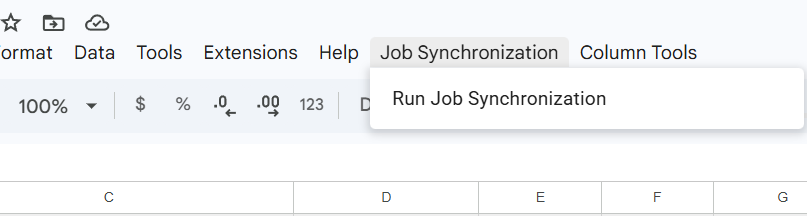
Here are some Google Sheets menus and button examples we have created for our customers;
- Empty the sheet, retaining the first row containing example data
- Open an email composer window for easy author contact
- Submit the sheet data to an external system, such as CRM or reporting tool
- Validate the sheet, for expected data in each cell. If any data is unexpected, add a background colour to the cell
- Auto populate rows with predicted data
Automatic Saving
Never loose your work, as Google Sheets automatically saves as you work.
Work across devices
As Sheets is cloud based, any device with an internet connection can use Sheets. Begin a sheet on your mobile device on the train, arrive at the office, continue on your desktop, head into a meeting, use the Sheet on a laptop and then tidy up the days efforts on the train home again.
When you understand the abilities of Google Sheets, you can really begin to take advantage of this amazing (and free) spreadsheet tool.
For us, the best feature is its scripting capability which opens up endless possibilities. We can add data into Sheets, post data from sheets elsewhere, create entirely new menus, change data, validate data.
All of those little annoyances when using spreadsheets now solved, we’ve all cursed at spreadsheets many many times over the years. Things that should be easy aren’t, you spend hours writing Marcos, Pivot Tables and the like, only for the spreadsheet to corrupt a day or so into using it.
If you’ve read our other blog posts, you’ll know that we finish off with a contact link. Get in touch with us to find out how we can revolutionise your usage of spreadsheets, you’ll be annoyed that you didn’t do this years ago.